
Step 1: Log in to Your Account
- After creating your account, log in to OryonIQ with your email and password.
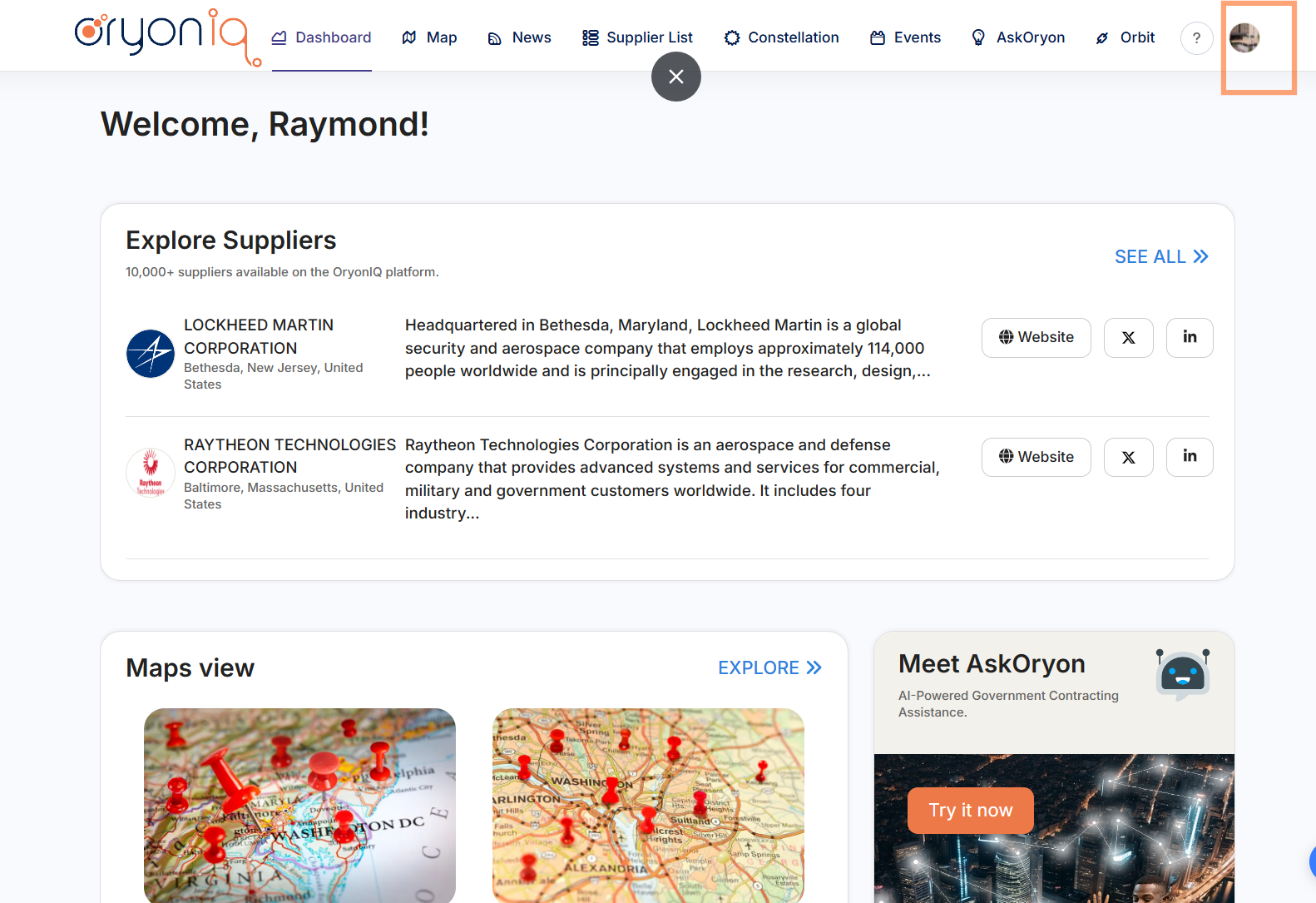
- Once logged in, you’ll see the Dashboard.
Step 2: Go to the Profile Setup Page
- From the Dashboard, select Profile from the top-right of the navigation bar.
- Click on Edit Profile to start personalizing your information.
Step 3: Add Your Basic Information
- Profile Picture: Upload a professional or friendly photo to make your profile stand out.
- Name: Your full name should appear as you want it to be seen by potential connections.
- Location: Enter your city and country to help match you with people in your area or similar industries.
- Job Title: Specify your current role and industry (e.g., Project Manager in Technology).
Step 4: Save Your Profile
- Primary NAICS Code: Select the North American Industry Classification System (NAICS) code that best describes your primary business (e.g., 334310 - Audio and Video Equipment Manufacturing).
- Secondary NAICS Codes: If applicable, add any other NAICS codes representing other business areas.
- Industry Type (PSC Code): Choose the most relevant Product or Service Codes (PSC) to categorize your industry (e.g., Information Technology, Professional Services, etc.).
- Federal Business Designations: Choose all federal designations that apply to your business (e.g., Small Disadvantaged Business, Women-Owned Small Business).
- State and Local Business Designations: If relevant, select any applicable state or local designations representing your business category.
Step 5: Save Your Profile
- Double-check your entries to make sure everything is accurate and well-presented.
- When you’re satisfied with your profile, click "Save Changes".
Additional Tips
- Update Regularly: As you gain more experience or change positions, update your profile for more relevant matches.
Related Articles
For additional help, feel free to contact support@visioneerIT.com